
The basic loop
Eating30 is an app for iPhone, iPad and Android that counts how many different plants you eat each week, with 30 as the target. You eat something, open Track Plants and tap the plants that were in it. A circle on the home screen fills up toward 30, and when your week starts again, so does the count.
That is most of the app, and it is free. The plant list has more than 350 plants, with names translated into the app's eleven languages.
The circle: what moves the number
The first thing you see in Eating30 is a circle with a number inside it. That number is your count of different plants this week, out of 30.
It goes up when you log a plant you haven't logged yet this week. A quarter or a half of a new plant adds that amount, and more quarters of the same plant keep adding until they make one full plant.
It doesn't go up when you log the same plant again: Monday's banana and Thursday's banana are one banana. Color varieties of the same plant count once too, as long as "Treat same plants with different colors as one" is switched on in Journal Settings.
The circle starts again at the beginning of your week, on whichever day you choose in Journal Settings. By default the iPhone app takes the start day from your phone's region settings (Sunday in the US, for example) and the Android app uses Monday. Your history isn't touched: the week arrows on the home screen take you back to earlier weeks. Tapping the circle opens this week's journal, where you can check or remove anything that went in by mistake.
Logging a whole meal, or one plant at a time
Track Plants opens in multi-select mode. Tap every plant in your meal, then tap Add plants once. That matches how most people log: a meal at a time.
Some people log as they eat, one plant at a time. For them single mode is quicker, because one tap logs the plant and closes the screen. The app remembers which mode you last saved in. Leave multi-select with the clear button and log a plant with one tap, and Track Plants opens in single mode next time. Log a meal in multi-select later and that becomes the default again.
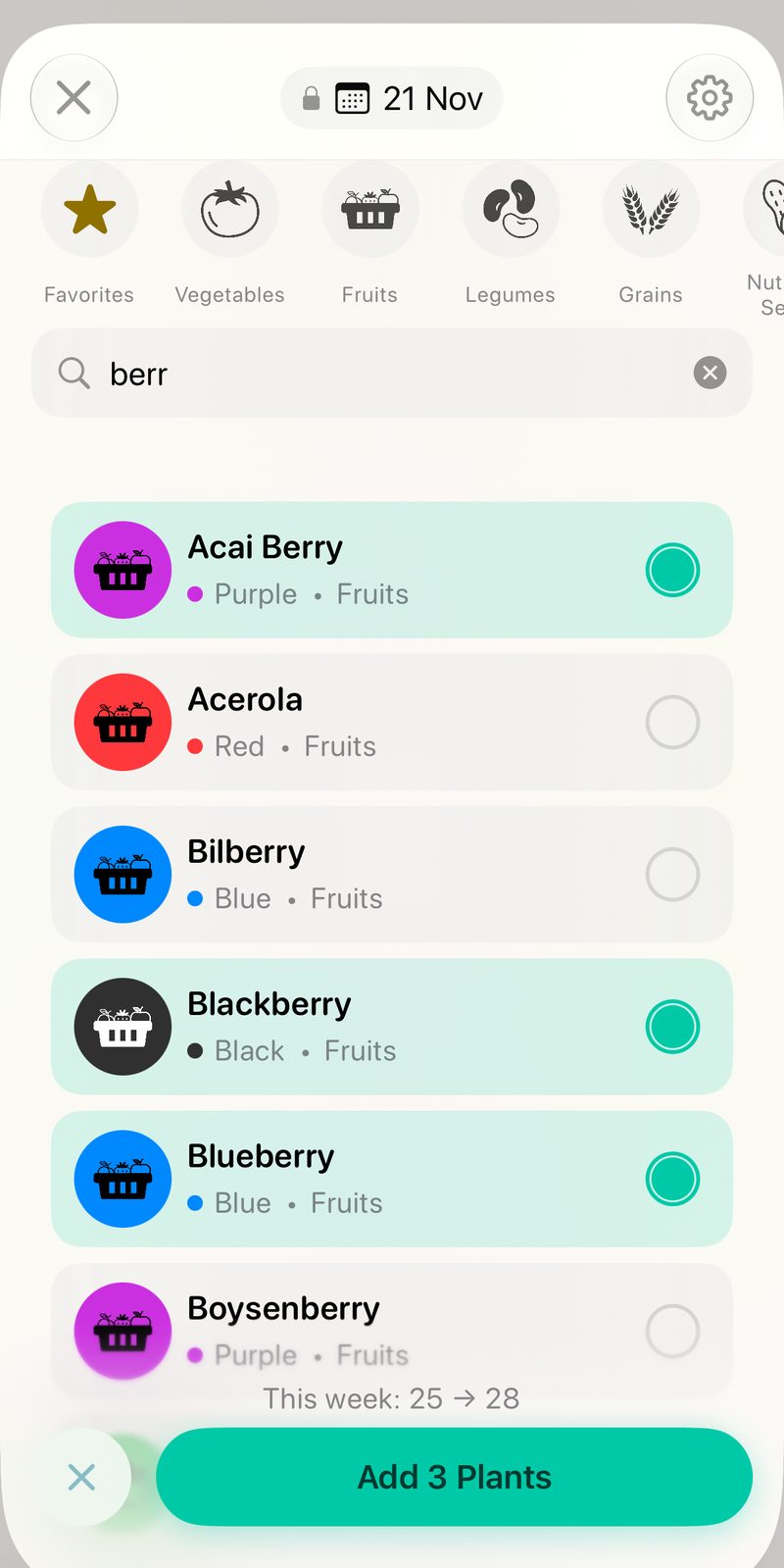
- Search, or tap a group at the top.
- Tap every plant that was in the meal.
- Add them all at once.
Quarters and halves
Not everything you eat deserves a whole point: a sprinkle of chili flakes, a bay leaf in a stew, a few sesame seeds on top. Lots of people count those as a quarter or a half, and the app supports that. Each tap on a plant moves it along: full, quarter, half, off. A small pie on the plant shows the amount.
Different plants add together, so four spices at a quarter each make one point. The same plant adds up across the week too, capped at one: a quarter of thyme on four different days makes one full thyme. That second rule is deliberate. A herb you use a lot ends up counting fully, and one you used once counts a little.
If you only ever count full plants, tap once and ignore the rest.
Combos for the things you eat every week
A combo is a saved set of plants that you log with one tap, such as your usual breakfast, a seed mix or a soup you make often. Your quarters and halves are kept. Saving combos is part of Premium.
A packaged product can become a combo too. After a barcode scan, adjust the list of plants the app found and tap Save as a Combo. The name is filled in with the product's name. Next time, the product is under Track Combo on the home screen.
Photo search
With Premium, the app can suggest plants from a photo. On the home screen, tap AI Search, then Take Photo or Choose Photo. The app lists the plants it sees in your meal, snack or shopping, and you check the list and save.
When the app recognizes a dish, it also suggests plants that are usually in it but hidden, like the garlic and onion in a tomato sauce. These are only suggestions. They aren't logged unless you tick them, because your version of the dish may be different. It's AI, so now and then it will miss a plant or name the wrong one, which is why you confirm the list before anything is saved.
On iPhone it needs iOS 27 and Apple Intelligence (iPhone 15 Pro or later), in a region and language where Apple Intelligence is available. The photo is analyzed by Apple Intelligence, either on your iPhone or on Apple's Private Cloud Compute, and Eating30 doesn't save it. On Android it works on phones that support Google's Gemini Nano. There the photo is analyzed on your phone and isn't sent anywhere.
What else is in the app
Besides the weekly count, the app has:
- Eat the Rainbow: five arcs that show which color groups you've eaten, by week or by day
- Achievements, from your first three plants to a year of 30-plant weeks
- Optional reminders, a midweek nudge and a weekly recap
- Your own plants and categories, and the option to hide plants you never eat
- On iPhone: Siri and a home screen widget with quick add buttons
- iCloud sync between iPhone and iPad, with no account